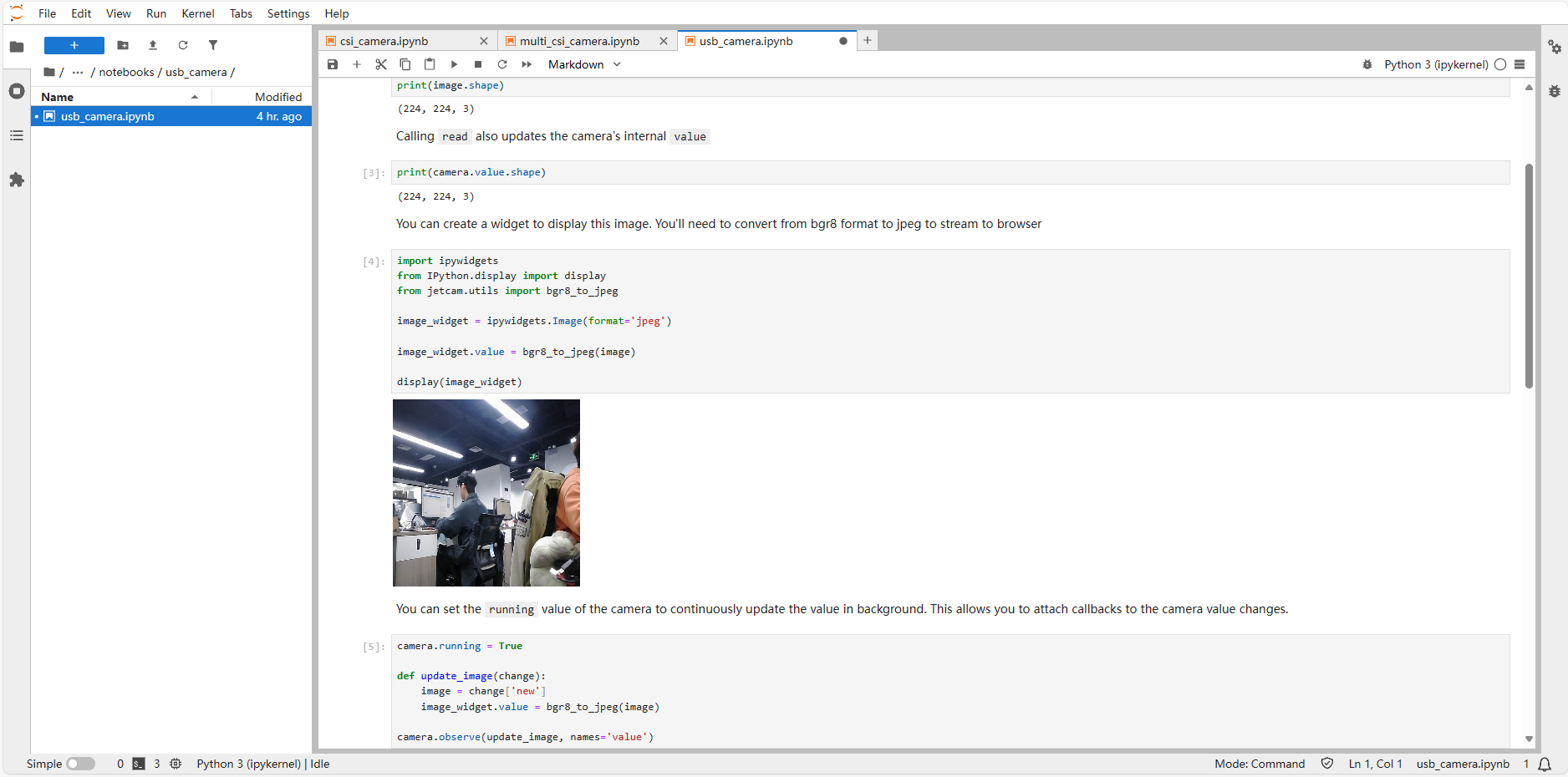
04-Use JetCam
Use JetCam 1. JetCam installation 2. JetCam use 2.1, CSI camera Main code explanation Call the camera Get the camera image 2.1.1, single-channel camera 2.1.2, multi-channel camera 2.2, USB camera References
JetCam is an easy-to-use Python library developed by NVIDIA for the Jetson platform, which is used to integrate and operate USB cameras or CSI cameras
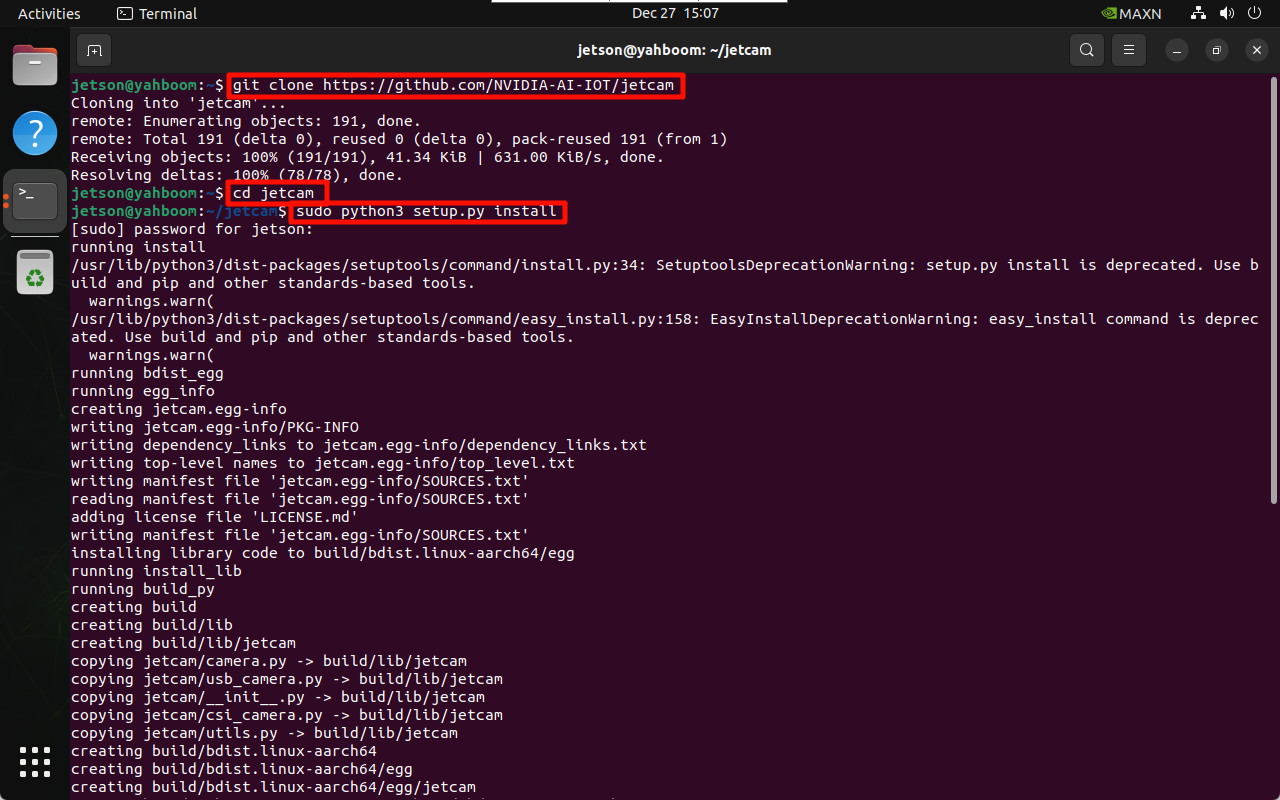
1. JetCam installation
git clone https://github.com/NVIDIA-AI-IOT/jetcam
cd jetcam
sudo python3 setup.py install
sudo pip3 install ipywidgets
2. JetCam use
JetCam provides typical sample programs to demonstrate the calling of CSI and USB cameras to users.
The example needs to be run using Jupyter Lab. Using our factory image system, you can directly access it through the motherboard IP: 8888!
2.1, CSI camera
Enter the folder where the CSI camera is located on the Jupyter Lab web page and open the corresponding folder:
/home/jetson/jetcam/notebooks/csi_camera
If you are not familiar with Jupyter Lab, you can read the Jupyter Lab tutorial to learn basic operations!
Main code explanation
Call the camera
width: image output width
height: image output height
from jetcam.csi_camera import CSICamera
camera = CSICamera(width=224, height=224)
Get the camera image
image = camera.read()
2.1.1, single-channel camera
Source code path
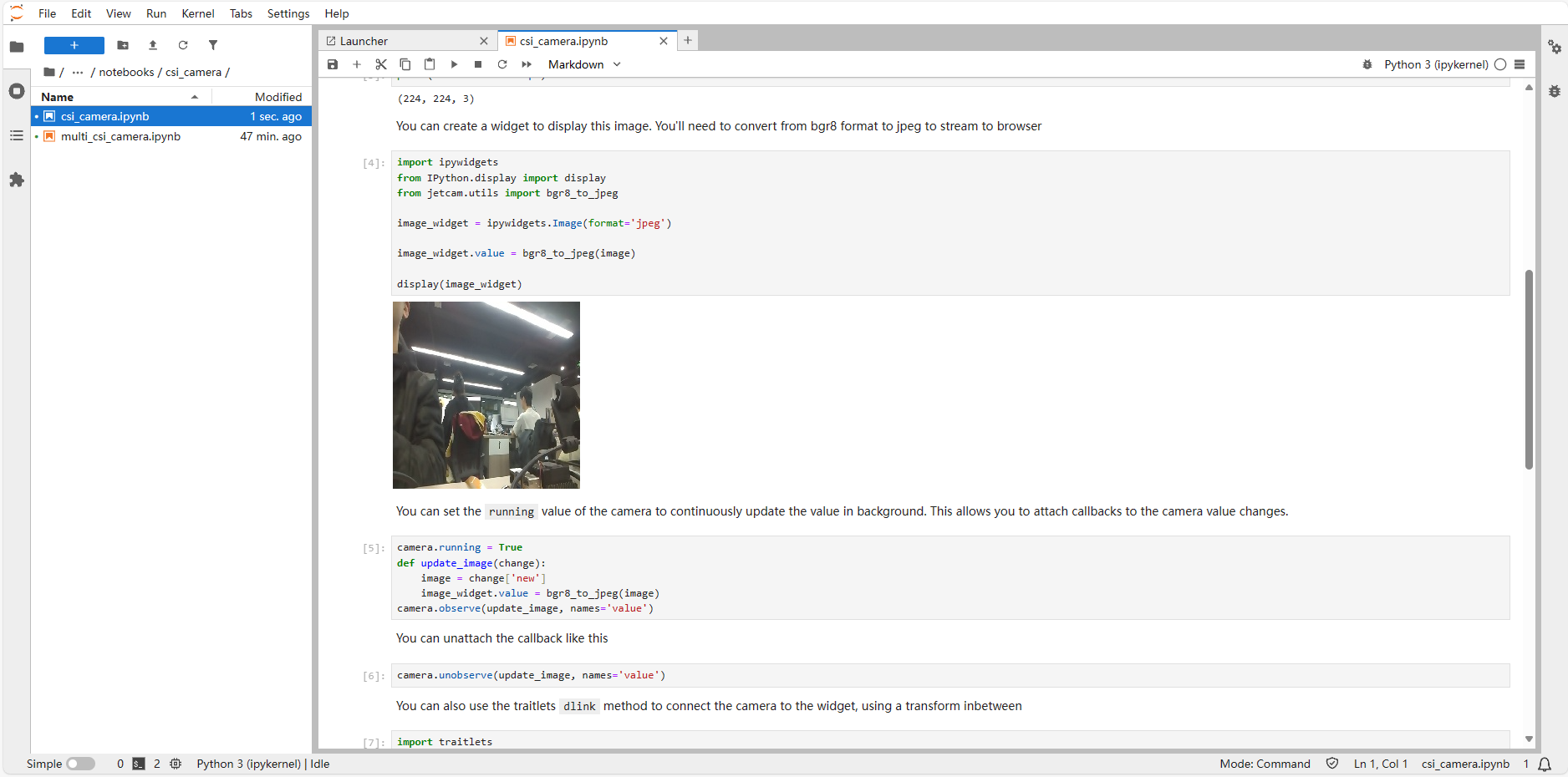
/home/jetson/jetcam/notebooks/csi_camera/csi_camera.ipynb
Running phenomenon
After opening the program file, a single unit block runs from top to bottom:
2.1.2, multi-channel camera
Source code path
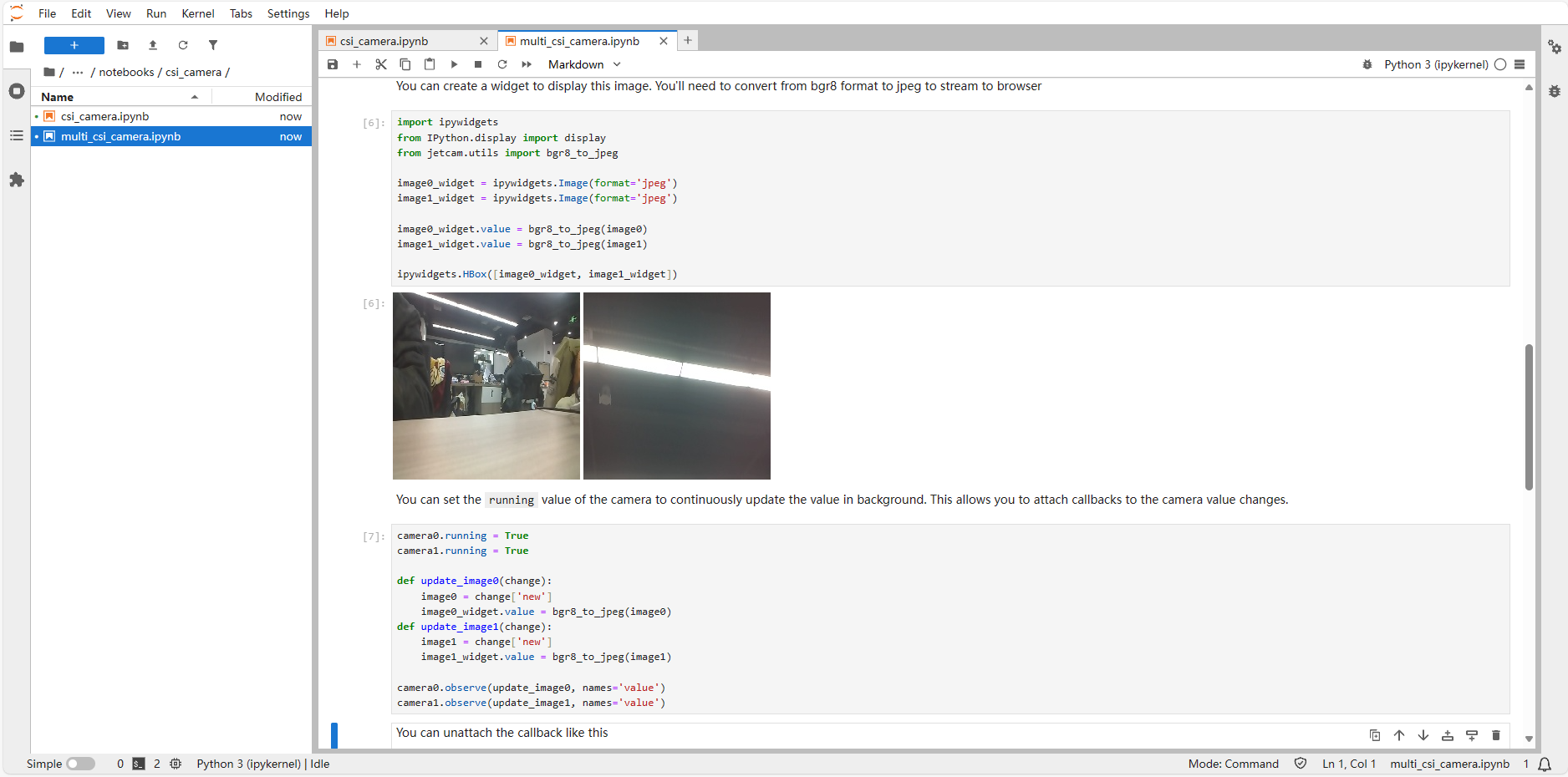
/home/jetson/jetcam/notebooks/csi_camera/multi_csi_camera.ipynb
Running phenomenon
After opening the program file, a single unit block runs from top to bottom:
2.2, USB camera
Jupyter Lab enters the folder where the USB camera is located and opens the file. The factory image system folder path is:
/home/jetson/jetcam/notebooks/usb_camera